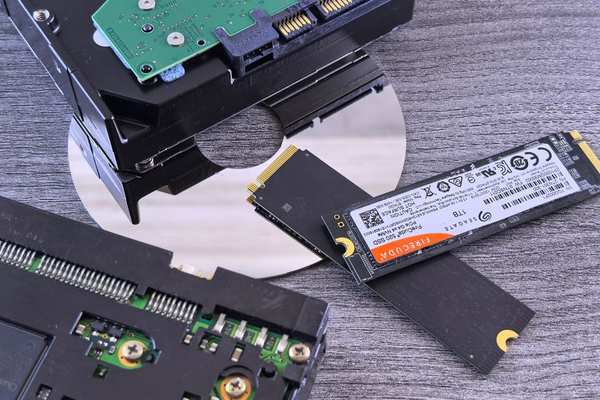
Storage is one of the easiest laptop specifications to underestimate. Two laptops can both offer 1TB yet feel completely different if one uses a solid-state drive and the other relies on a hard disk drive. For most buyers in 2026, the real question is not only how much space you need, but how quickly, quietly, and efficiently that storage works every day.
SSD vs HDD for laptop storage: the short answer
For a new laptop, an SSD is the best laptop storage type for nearly everyone. SSDs have no moving parts, start Windows and apps much faster, handle everyday multitasking more responsively, use less power, and cope better with bumps than mechanical hard drives.
HDDs still have one important advantage: low-cost capacity. They remain useful for large media libraries, archives, and backups. As a laptop’s main system drive, however, an HDD now makes sense mainly when price and storage capacity matter far more than speed.
Why SSD speed changes how a laptop feels
An HDD stores data on spinning magnetic platters and moves a read/write head to the correct location. An SSD stores data in flash memory and retrieves it electronically, avoiding that mechanical delay.
The difference appears during booting, launching apps, installing software, opening large files, searching folders, and installing updates. Current 2.5-inch laptop hard drives commonly run at 5,400 RPM and can deliver sequential transfer rates around 140 MB/s. Modern PCIe 4.0 NVMe SSDs can reach several thousand MB/s, with high-end models rated above 7,000 MB/s. Real performance varies by controller, cooling, workload, and laptop design, but the gap is still substantial.
When comparing SSD vs HDD speed, raw transfer figures tell only part of the story. SSDs are also much better at accessing many small files quickly. That matters because Windows, browsers, office apps, games, and creative software constantly read small pieces of data.
Capacity and price: where HDDs still make sense
SSDs are far more affordable than they were years ago, which is one reason 512GB and 1TB NVMe drives are common in mainstream laptops. HDDs remain attractive when you want several terabytes as cheaply as possible. Traditional 2.5-inch laptop hard drives are still available in multi-terabyte capacities, although thicker models may not fit slim notebooks.
A practical laptop storage guide should separate system storage from archive storage. Prioritize an SSD for Windows, apps, and active files. If you keep huge video collections, raw photos, or backups, an external HDD can provide inexpensive extra capacity without slowing the operating system.
A real-world buying example
Imagine two similarly priced laptops: one has a 1TB HDD and the other a 512GB NVMe SSD. A student who mainly uses a browser, Office, streaming services, cloud storage, and a few games will usually be happier with the 512GB SSD because the whole computer feels more responsive. A photographer with several terabytes of archived images may need more space, but an SSD laptop plus external archive storage is often the better balance.
Reliability, travel, noise, and battery use
Because HDDs contain spinning platters and mechanical parts, they are more vulnerable to shock while operating. SSDs have no moving components, so they are generally better suited to laptops carried in backpacks or moved between work, school, and home. Neither technology is failure-proof, so important files still need backups.
SSDs are silent and generally use less power because they have no spinning platters. The battery-life difference varies by laptop, but lower storage power use still helps portable machines.
Longevity is more nuanced. SSD flash cells have finite write endurance, commonly measured in terabytes written, while HDDs can suffer mechanical wear or sudden component failure. In ordinary consumer use, a reputable SSD normally offers ample endurance. Backups matter more than assuming either drive will last forever.
Do you need the fastest NVMe SSD?
Not necessarily. Very fast NVMe SSDs can become warm during long transfers, and laptops may reduce performance when temperatures rise. For everyday buyers, a solid 512GB or 1TB NVMe drive is usually more useful than paying extra for peak benchmark speed.
Understanding NVMe vs SATA SSD differences also helps: SATA SSDs are still much faster than HDDs in everyday use, while NVMe drives offer higher potential bandwidth and are common in newer laptops.
Which storage should different laptop buyers choose?
Home, school, and office use
Choose at least a 512GB SSD if your budget allows. It gives comfortable room for Windows, apps, documents, photos, and routine downloads while keeping the laptop responsive.
Gaming
A 1TB SSD is a sensible starting point because modern games can be very large. If the laptop has a second M.2 slot, adding another SSD later may be more economical than buying excessive capacity upfront.
Photo and video work
Use a fast SSD for the operating system, editing software, cache files, and active projects. Move completed projects to larger secondary or external storage to balance performance and cost.
Large archives on a strict budget
An HDD still works well as secondary storage when cost per terabyte matters most. For a new laptop, avoid an HDD-only configuration if an SSD alternative is reasonably affordable.
Check compatibility before upgrading
Not every laptop accepts every drive. Older systems may use a 2.5-inch SATA bay, while modern thin laptops often use M.2 NVMe storage. Some machines have only one accessible slot or non-upgradeable storage. Before buying a drive, check the manufacturer’s service manual for supported form factor, interface, M.2 length, and upgrade access.
A laptop RAM guide and a guide to how much laptop storage you need are useful companions because memory and storage solve different performance problems.
FAQ
Is SSD or HDD better for a laptop in 2026?
An SSD is the better main drive for almost every new laptop. It offers much faster responsiveness, no mechanical noise, better shock resistance, and generally lower power use. HDDs are better reserved for inexpensive bulk or backup storage.
Is 512GB SSD enough for a laptop?
For many students, office users, and general home users, 512GB is a good balance of capacity and price. Gamers, video editors, photographers, and users with large local libraries may prefer 1TB or more.
Can a laptop use both an SSD and an HDD?
Some larger or older laptops can use both if they have an M.2 slot and a 2.5-inch bay. Many current thin laptops do not have room for a 2.5-inch HDD, so check the internal layout first.
Does an SSD make an old laptop faster?
Yes. Replacing a mechanical system drive with a compatible SSD is often one of the most noticeable upgrades for an older laptop. Boot and app-loading times can improve substantially, although processor and RAM limitations will remain.
Which should your next laptop have?
For most buyers, choose an SSD as the primary storage and select capacity around your actual files and software. A 512GB SSD suits lighter everyday use, while 1TB is a stronger all-round choice for gaming, creative work, and users who prefer more local space. HDDs still earn a place when low-cost capacity is the priority, but usually as secondary or external storage rather than the drive that runs the laptop every day.